Description
In Webdoc, there is a possibility to access external services to enable to sign in to external applications via the WD GUI. Depending on granted user permissions for the external services, the external service links can then be accessed either via the patient shortcuts (WD left panel), or via general links from the WD top menu option "Documents".
This page describes the necessary Single Sign-On (SSO) flow - based on "OAuth 2.0" - to access an external application in the context of Webdoc.
Prerequisites
- API credentials must be configured in the WD auth server, such as a client ID along with a client secret and scopes, etcetera (each client ID is unique for each WD system).
- A redirect URI/URL reflecting a URI/URL on the integrator side must be configured in the WD auth server.
- The grant_type "authorization_code" must be used in order to request a user based access token.
- The scope(s) used when accessing an authorization code must be the same as the one(s) used when requesting the user based access token.
- An external service link must be configured in WD reflecting a URI/URL to the external integrator application with granted user permissions in WD to see the external link in the WD GUI.
Workflow 1 - Steps to receive a user based access token via an external service
-
Login to your Webdoc environment:
-
TEST environment:
https://webdoc-integration.carasent.net -
PROD environment:
https://webdoc.atlan.se
-
TEST environment:
- From the WD GUI, click on the link to the external application - either via the patient shortcuts (WD left panel) or via the general links accessed from the WD top menu option "Documents".
-
Once navigated to the external application, the corresponding landing page on the integrator side can trigger a request to get an authorization code from the WD auth server.
The authorization endpoint URL to be requested can look like the following example - having <whatever> replaced with whatever state value you would like (e.g. a random string), and <client_id> replaced with the name of your client ID:
-
Let's say you have the redirect URL "https://yourdomain.com/auth" configured in the WD auth server for your client ID. Then (given that you are still logged in to your WD environment) an authorization code will be returned to a query parameter named "code" in the redirect URL as below:
https://yourdomain.com/auth?code=2631595b3c70a49e4d89327f08e22a50cb200da&state=<whatever>&db_name=<your-customer-db-name>Note! An authorization code is only valid for a few seconds. -
Once the authorization code is returned in the redirect URL to the external application, the corresponding landing page for the redirect URL can extract the attached code to finally be attached in a new request for a user based access token.
Example CURL - Request a user based access token:
    curl -X \
    POST -u "<client_id>:<client_secret>" \
    -d "grant_type=authorization_code&scope=system-admin&code=26315f95b3c70a49e4d89327f08e22a50cb200da" \
    https://auth-integration.carasent.net/oauth/token
Once the access token is returned, a user_id value will then be attached in the response reflecting the logged in WD user in UUID format.
Example JSON response - User based access token:
    {
        "access_token": "4b1c4d22088bd605e6b9d16cf183f49e7f7b2154",
        "expires_in": 3600,
        "token_type": "Bearer",
        "scope": "system-admin",
        "refresh_token": "a71d82d0e2c33cda993e6171e1329b52bfc9f6f4",
        "user_id": "5471f10f-f9b1-11eb-b518-0242ac120003"
    }
Note! Each issued access token is valid for one hour.
Workflow 2 - Example steps to complete SSO on the integrator side
- Given that the external application has received a user based access token, the attached user_id could then be mapped to a corresponding user ID (UUID) stored on the integrator side to validate the user.
- If there is a matching user on the integrator side, the user login can then be fulfilled in the external application. For instance through an automatically generated login link on the integrator side, which could then be used in the external application to complete the user login.
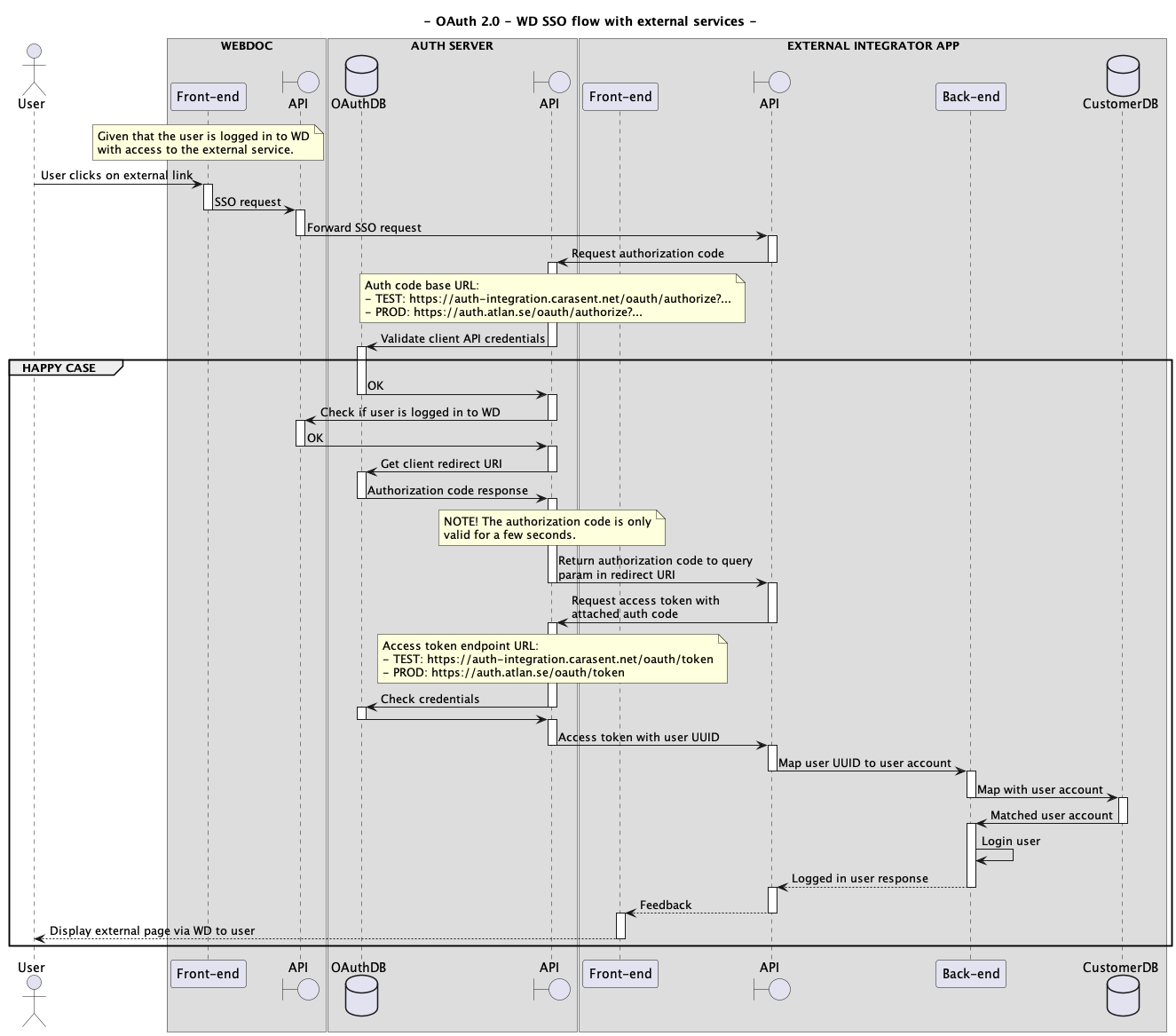
Context flow
The below sequence diagram illustrates the necessary sequence flow for this entire context (click on the image to see it in original size):